

Creating a WordPress website has become one of the most popular ways to establish an online presence, whether for personal projects, blogs, or business ventures. With its user-friendly interface and powerful customization options, WordPress allows anyone regardless of technical skill to build a professional-looking website.
In this article, we’ll walk you through the 10 easy and simple steps required to set up your WordPress website. Whether you’re a beginner or looking to improve your current site, these steps will help you get started and succeed.
Why Choose WordPress?
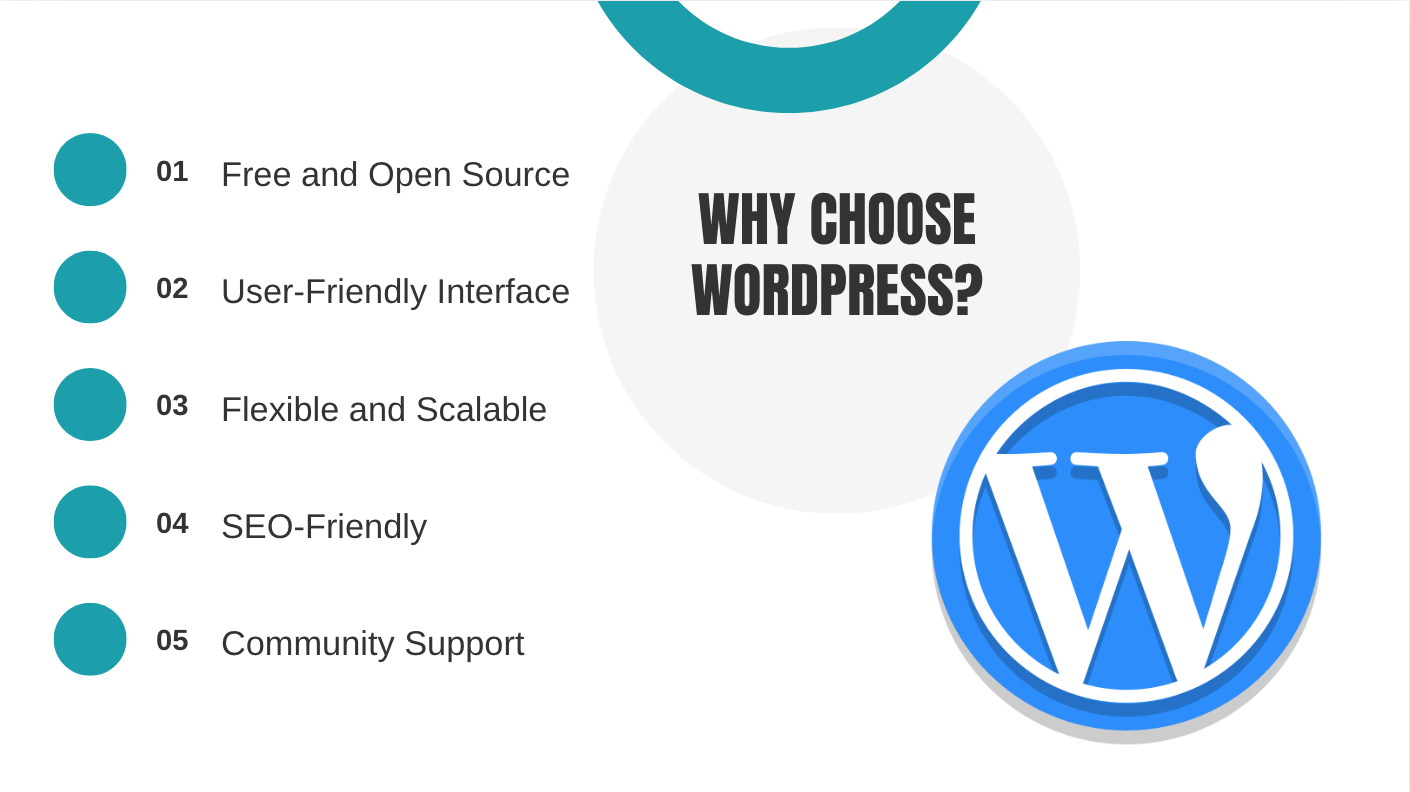
Before we dive into the steps, let’s briefly discuss why WordPress is a great choice for creating a website.
WordPress is a content management system (CMS) that powers around 40% of all websites worldwide (W3Techs, 2026). It is easy to use, flexible, and offers thousands of themes and plugins to customize your website’s look and functionality. Whether you’re a beginner or an experienced web developer, WordPress can help you create a website quickly without writing complex code.
Now, let’s get started with creating your WordPress website in 10 simple steps.
Step 1: Choose Your Domain Name and Hosting Provider
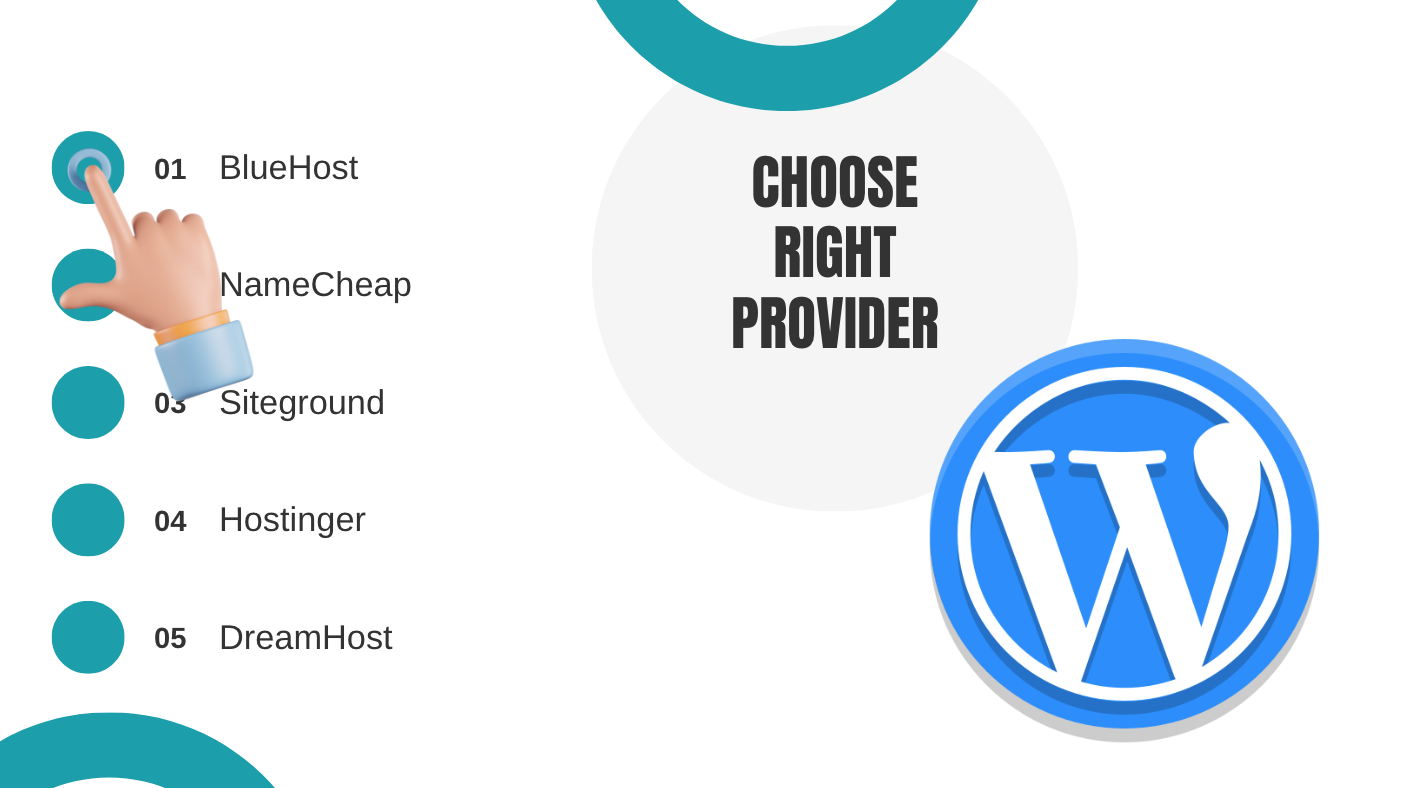
The first step in building any website is choosing a domain name (the address people use to find your website) and a web hosting provider (the company that stores your website’s files). Here’s how to get started:
Domain & Hosting Providers
A hosting provider stores your website files and makes your site accessible on the internet. Some of the best hosting providers for WordPress are:
Step 2: Install WordPress
Once you’ve purchased your domain and hosting, the next step is to install WordPress. Many hosting providers offer 1-click installation, which makes this process super easy.
Here’s how to install WordPress:
Installation Steps
After WordPress is installed, you can access your website by going to www.yourdomain.com/wp-admin, where you’ll log in using the credentials you created during installation.
Step 3: Set Up Your WordPress Theme
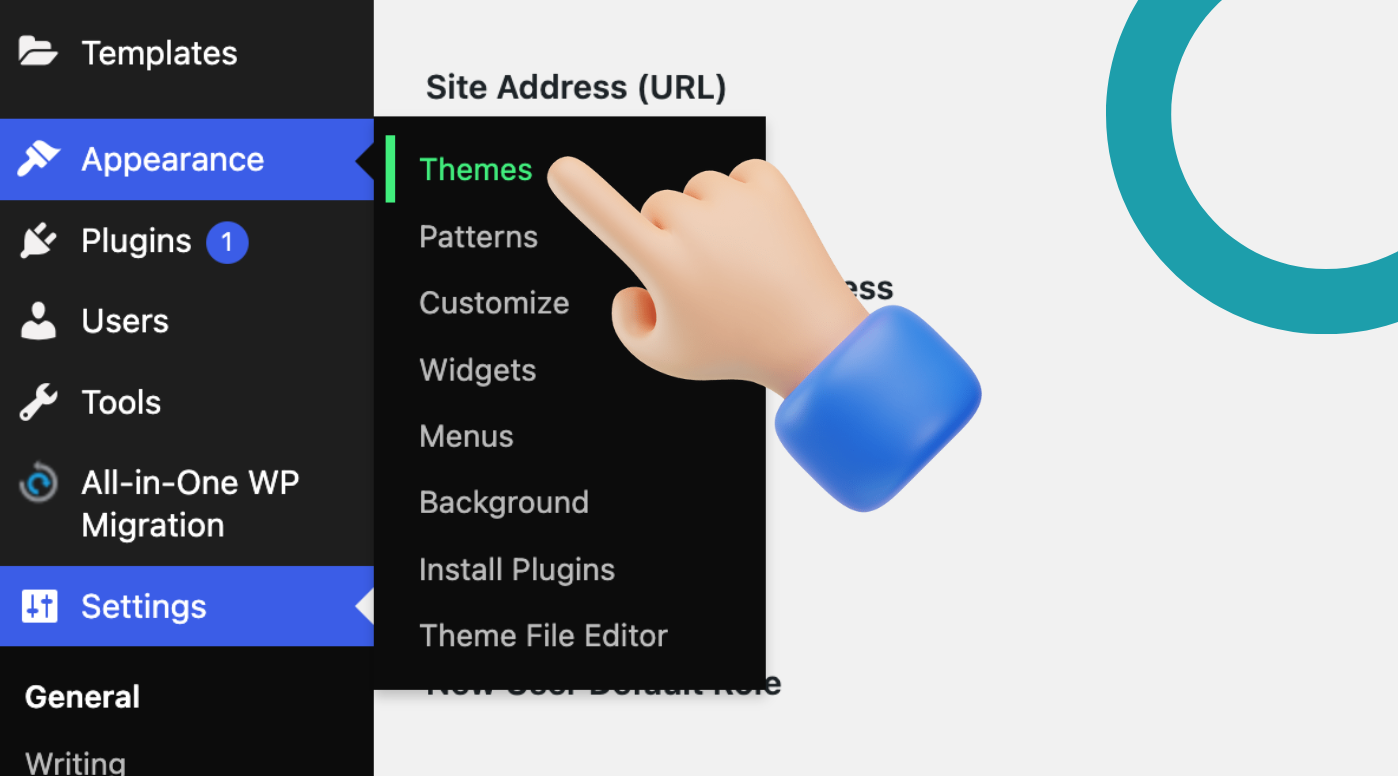
WordPress comes with several default themes, but you can customize your website by choosing a theme that suits your style. A theme controls the layout and appearance of your website, so it’s essential to choose one that matches your brand or content.
Theme Options
If you want a more customized design, you can choose premium themes from marketplaces like ThemeForest or Elegant Themes. Many premium themes offer more advanced features like drag-and-drop builders, customizable templates, and more design options.
Step 4: Customize Your Website’s Design
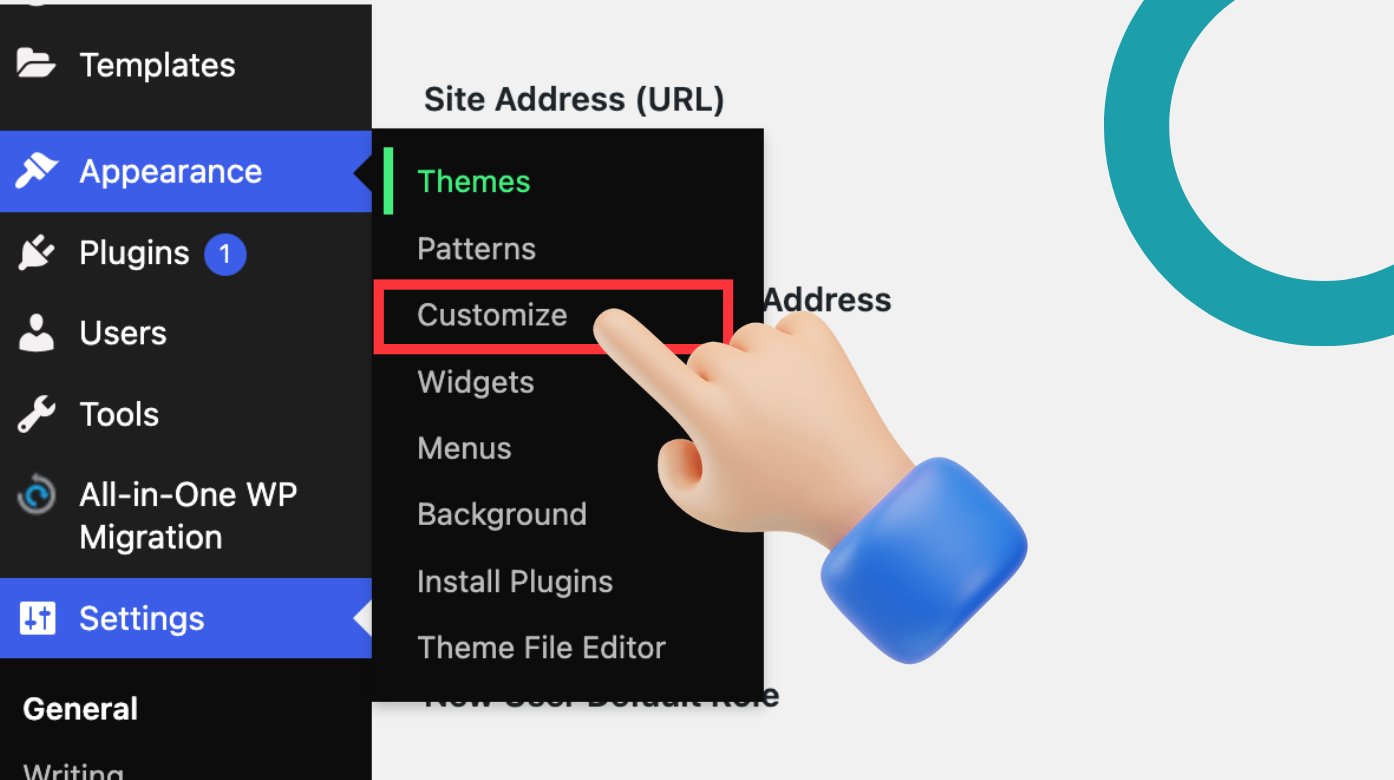
Once your theme is installed, it’s time to personalize your website. WordPress makes this easy with a built-in Customizer.
Customization Options
Additionally, some themes come with their own customization options, so check the theme’s settings under Appearance > Theme Options.
Step 5: Install Essential Plugins
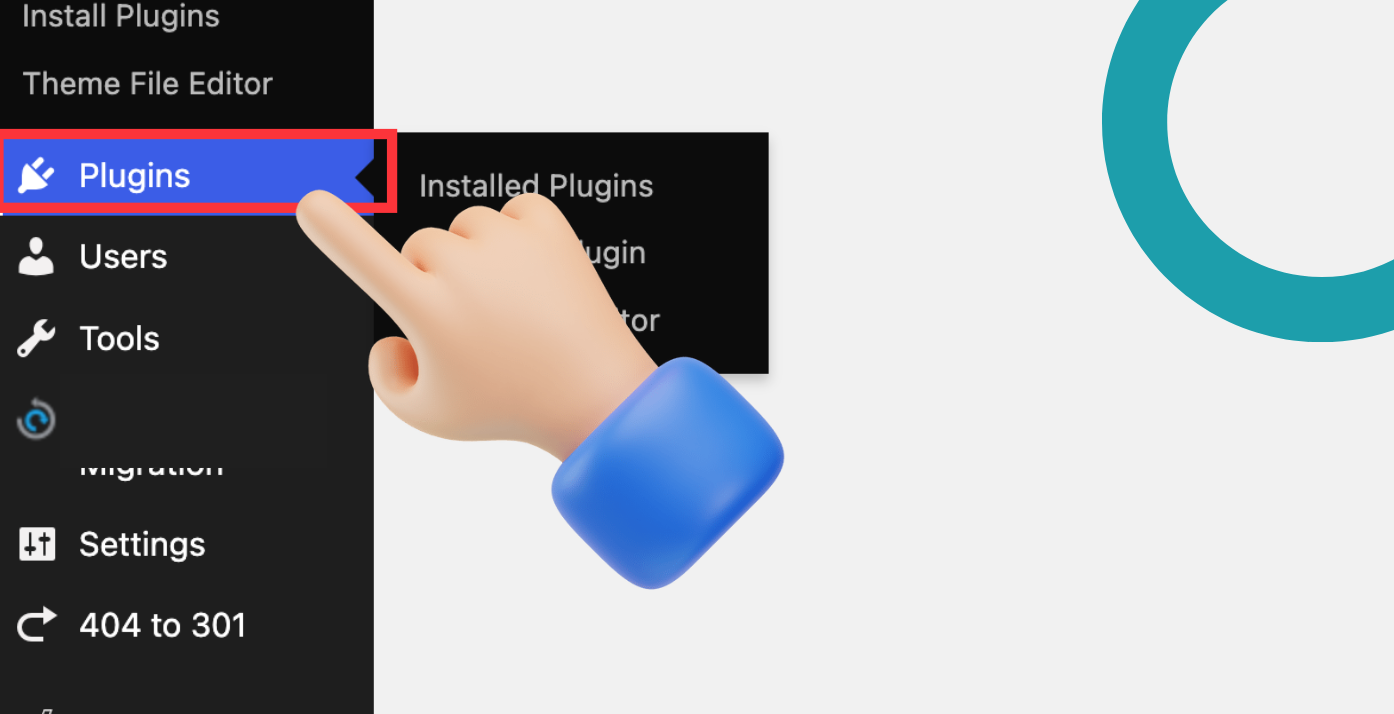
Plugins add extra functionality to your WordPress website. There are thousands of plugins available to help with SEO, social sharing, security, backups, and more. Here are some essential plugins every WordPress site should have:
Essential Plugins
To install a plugin, go to Plugins > Add New, search for the plugin you want, and click Install Now and then Activate.
Step 6: Create Pages and Posts
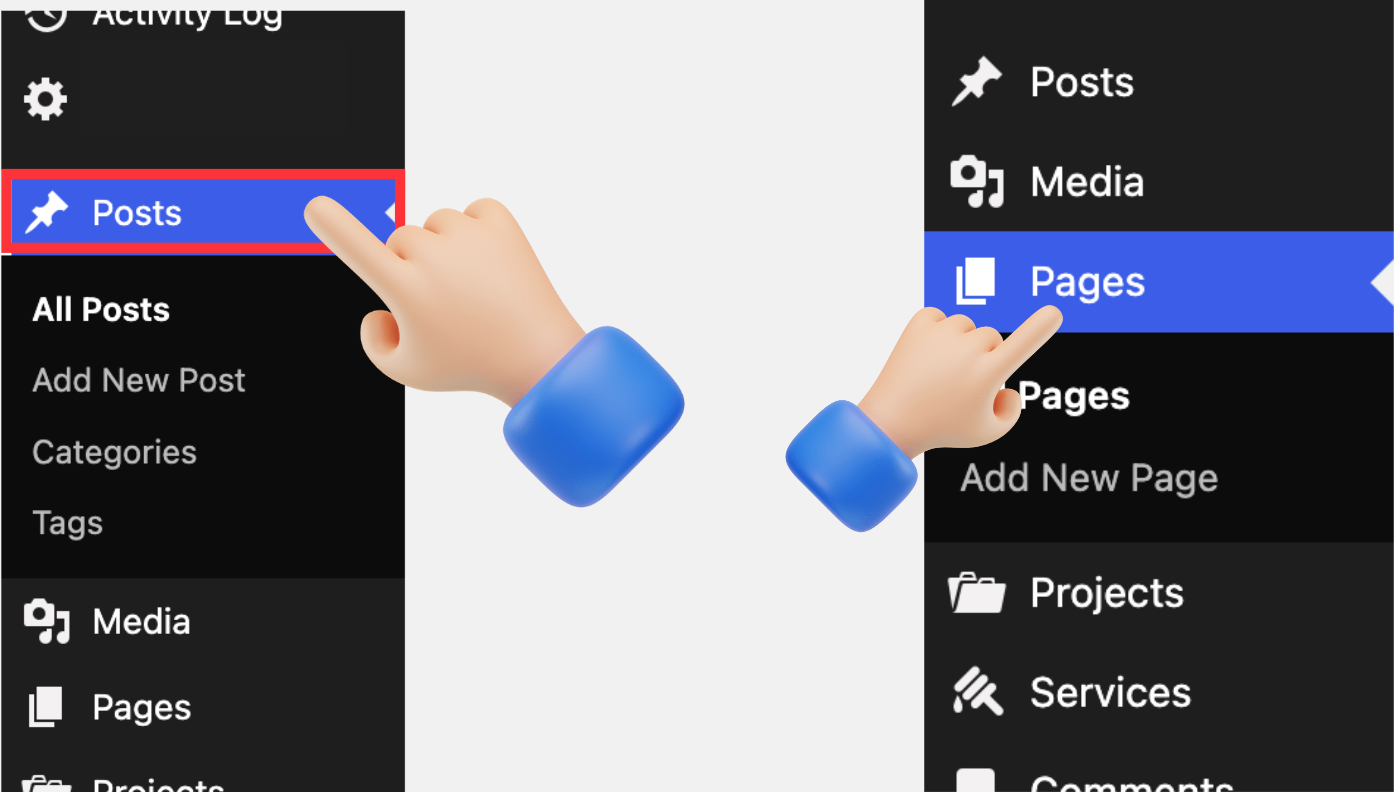
Now that your website is set up, it’s time to start adding content. There are two main types of content in WordPress:
To create a page, go to Pages > Add New, and to create a post, go to Posts > Add New.
For each page or post, add a title, content, and any media (images, videos) you want to include. You can format your content using the WordPress block editor, which is simple and intuitive.
Step 7: Add Website Content (Text, Images, etc.)
Content is the heart of your website. For a more engaging site, make sure to add high-quality images, videos, and well-written text.
Make sure your content is easy to read, mobile-friendly, and properly formatted for both search engines and users.
Step 8: Optimize for SEO

To make sure people can find your website, you need to optimize it for search engines. WordPress has a few built-in SEO features, and you can also use plugins like Yoast SEO to improve your site’s visibility.
Here’s a quick checklist to improve SEO:
SEO Checkpoints
Step 9: Set Up Analytics and Tracking

To understand how your visitors interact with your site, you should set up website analytics. Google Analytics is a free tool that gives you valuable insights into your website traffic.
Tracking Checkpoints
This will allow you to track metrics like page views, bounce rate, user demographics, and more.
Step 10: Launch Your WordPress Website
Once you’ve completed the previous steps, it’s time to launch your website!
Launching Steps
Final Thoughts
Congratulations! You’ve now learned how to create a WordPress website in 10 easy and simple steps. WordPress is a powerful platform that allows you to create professional websites without any coding experience. By following these steps, you’ve not only created a functional website but also laid a strong foundation for SEO, user experience, and monetization (such as AdSense).
With a little effort and creativity, your website can become an essential tool for your personal or business goals. Keep updating your site with fresh content, optimize for speed and SEO, and explore new features as you grow.
Good luck with your WordPress website creation journey!


